

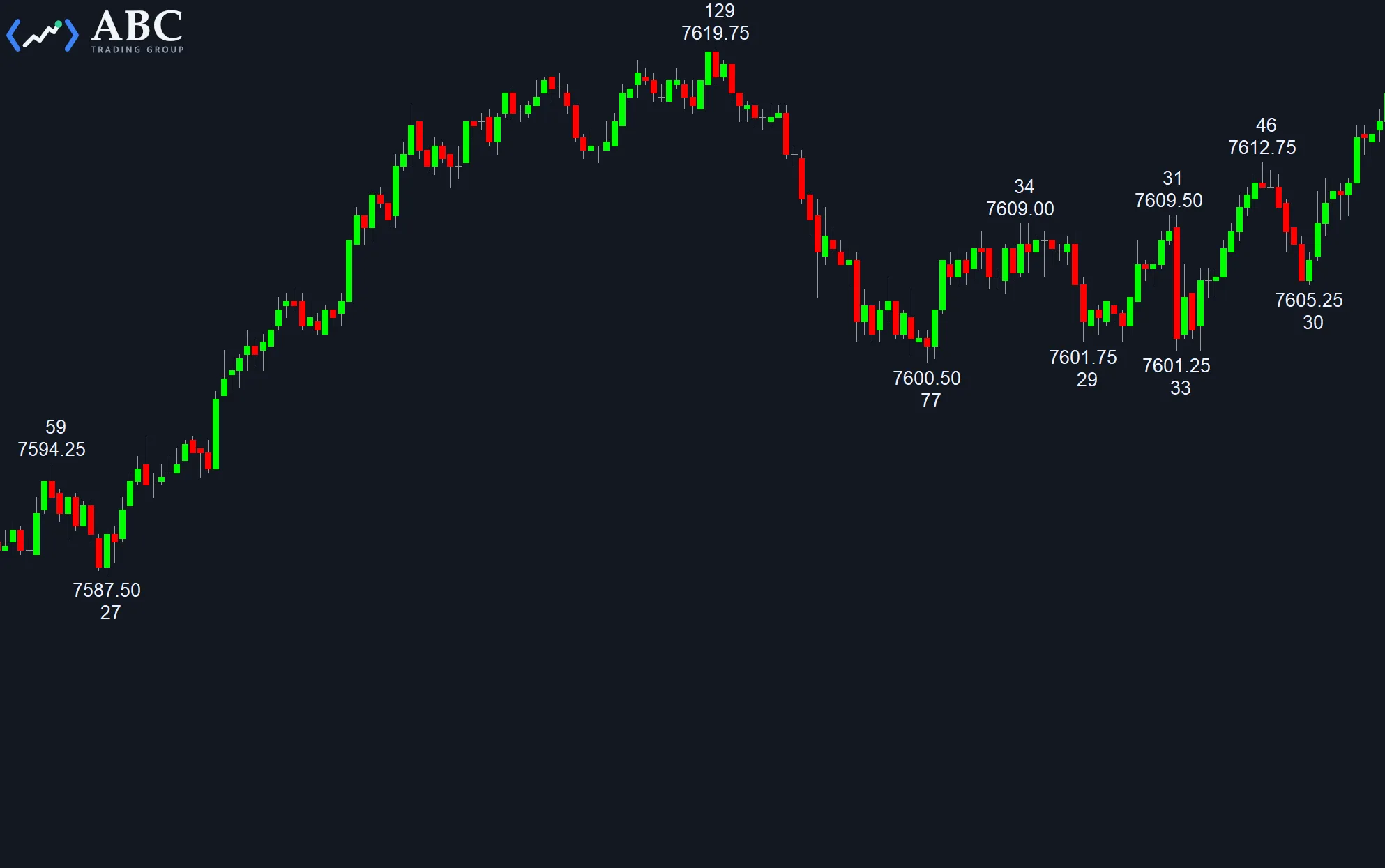
The study displays swing highs and swing lows based on advances and retracements by a customizable number of ticks.
Inputs for the Swing High Swing Low study
These are the inputs you can use to alter the swing high swing low study’s outcome:
- RetraceTicks – The amount of ticks the price has to retrace from the high or advance from the low to detect a new swing and text print.
- TextShiftTicks – The amount of ticks you want to shift the text higher than the swing high and lower than the swing low. This only affects the visual output, so you can see the chart bars easier.
- ShowRange – A true/false input to activate the displaying of the range between the previous low swing and current high swing price (and vice versa).
- DisplayRangeInTicks – A true/false input that specifies how the indicator will display the range. The display will be in full ticks if the input is true or as price difference if the input is false.
- ShowPrice – A true/false input that activates the price text for the swing high swing low text. With ShowRange and ShowPrice you have the ability to let the study print both range and price for the swing high swing low together or just one separately.
- UpDateMode – With the UpdateMode input you can change the way the study detects swing points. When UpdateMode = 0 the study will limit the updates to avoid too many text prints. A bar that makes a new high can’t also make a new low and vice versa. As this might lead to bars that make a new extreme, but are not displayed, as the bar also updates the opposing swing price. If you set the UpdateMode to 1, the study will detect a new swing extreme, even when the bar also updates the opposite swing point. Check both settings and see which one you prefer.
- LockText – The LockText input will lock the text drawings to the chart so you can’t move them by mistake. In case you want to move one text you can unlock it specifically with a right click on the drawing and selecting “Unlock Drawing”.
The remaining three inputs are there so you can change the swing high swing low text size, color and font to your liking.